Post | 23 Jun 2026
This post dives into the inner workings of my recently released Mindful Timer app. A single-view timer and local AI text engine app that optionally logs mindful minutes to Apple Health per meditation session. For such a simple app, it's been surprisingly challenging to document.
First of all, Mindful Timer is now available on the App Store for iPhone and iPad - a one-time purchase, and it works forever. Go check it out with the link at the bottom of the article!
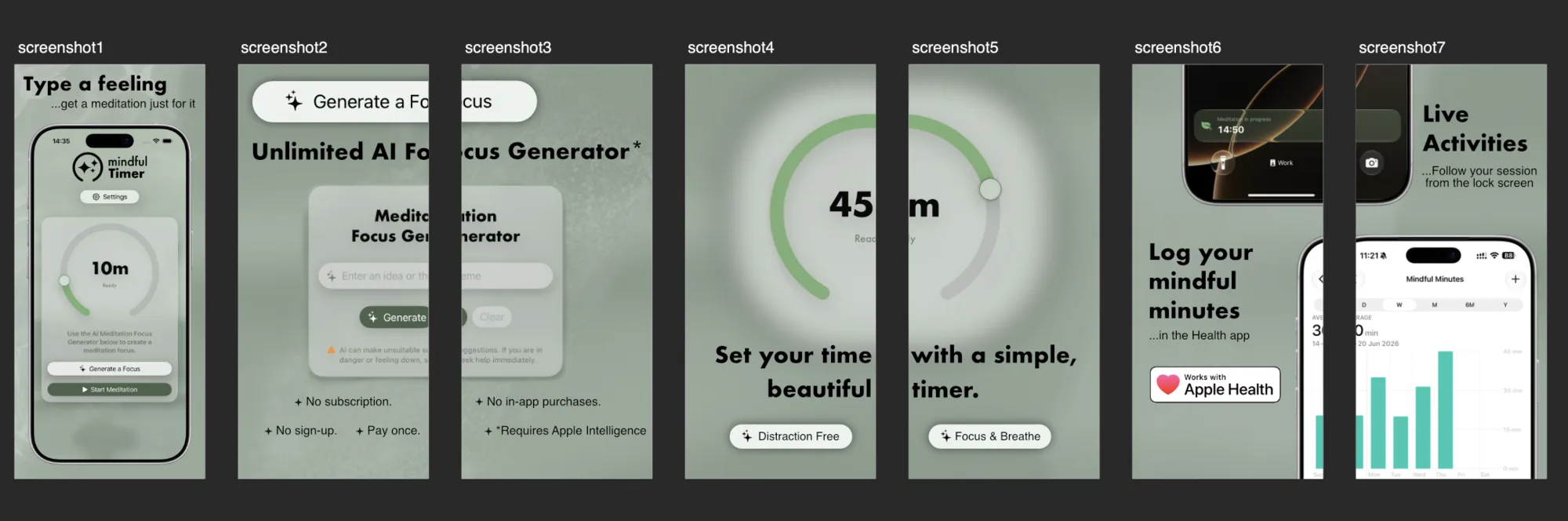
Beginnings of Mindful Timer
In March of this year, I began a meditation timer app as a weekend project. The goal was to allow AI to completely scaffold a working prototype based on the idea of a simple 60-minute timer using the final 'arc' shape, along with an Apple Intelligence local Foundation Model that I saw during WWDC 2025 from Apple, who demonstrated it as an offline local travel guide demo app. This was my way of taking that technology but implementing it for a different cause.
As with most of my app projects, not only do I want a portfolio piece, but something that is truly worth its weight and live on the real public-facing App Store. This also means you can go and use the apps I write about here rather than just looking at a repo.
This is, however, a closed-source project, so my write-up will be more in-depth in the absence of a public repo, and the app itself costs £2.99 to buy should you wish to own it yourself.
The goal with AI was to have the app done in one weekend. That was quite difficult, particularly with the outgoing handling of AI via ChatGPT in Xcode 26, which took a lot to get the idea across. I was able to draw out the end timer and send it before it truly understood the end goal.
Following anything AI built at the early stages, I would then closely go back line-by-line, ask questions, and fully understand it. That's how I picked this project back up on June 13th and had it published on the 16th.
Core Learning
The main learning points I have experienced from the Mindful Timer project are being able to leverage an on-device AI model, work with Swift's built-in timer components, schedule notifications, schedule start and end audio chimes, work with Apple HealthKit for mindful minutes logging, and use iOS Live Activities to show progress during a meditation session which can continue in the background or when a device is locked.
Behind nearly all of that is the 'async' asynchronous programming paradigm as well. This, in a nutshell, allows processes to load whilst the surrounding function of the app can continue to progress and not hold up the entire show. When ready, selected functions will update state, perform their functions, and populate data.
This is something that AI was able to implement and that I was able to inspect and question extensively until I understood the keywords and implementation points. Much of this was also exhibited in the Apple Intelligence demos and examples.
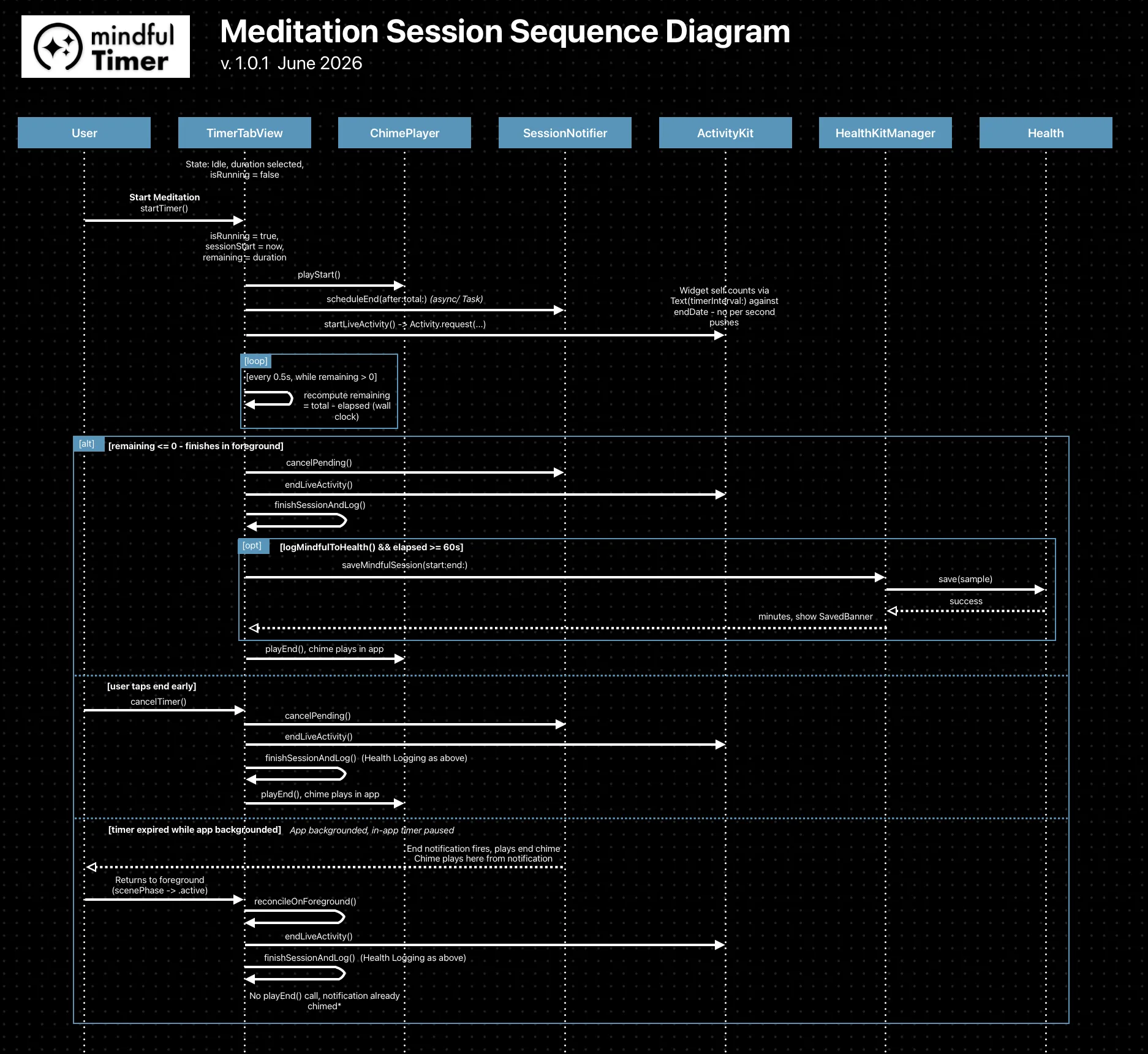
Part of the deep understanding came from producing some diagrams of the final system. These are below and explained - an overall architecture diagram detailing key modules, a UML diagram, a state flow diagram, and a sequence diagram.
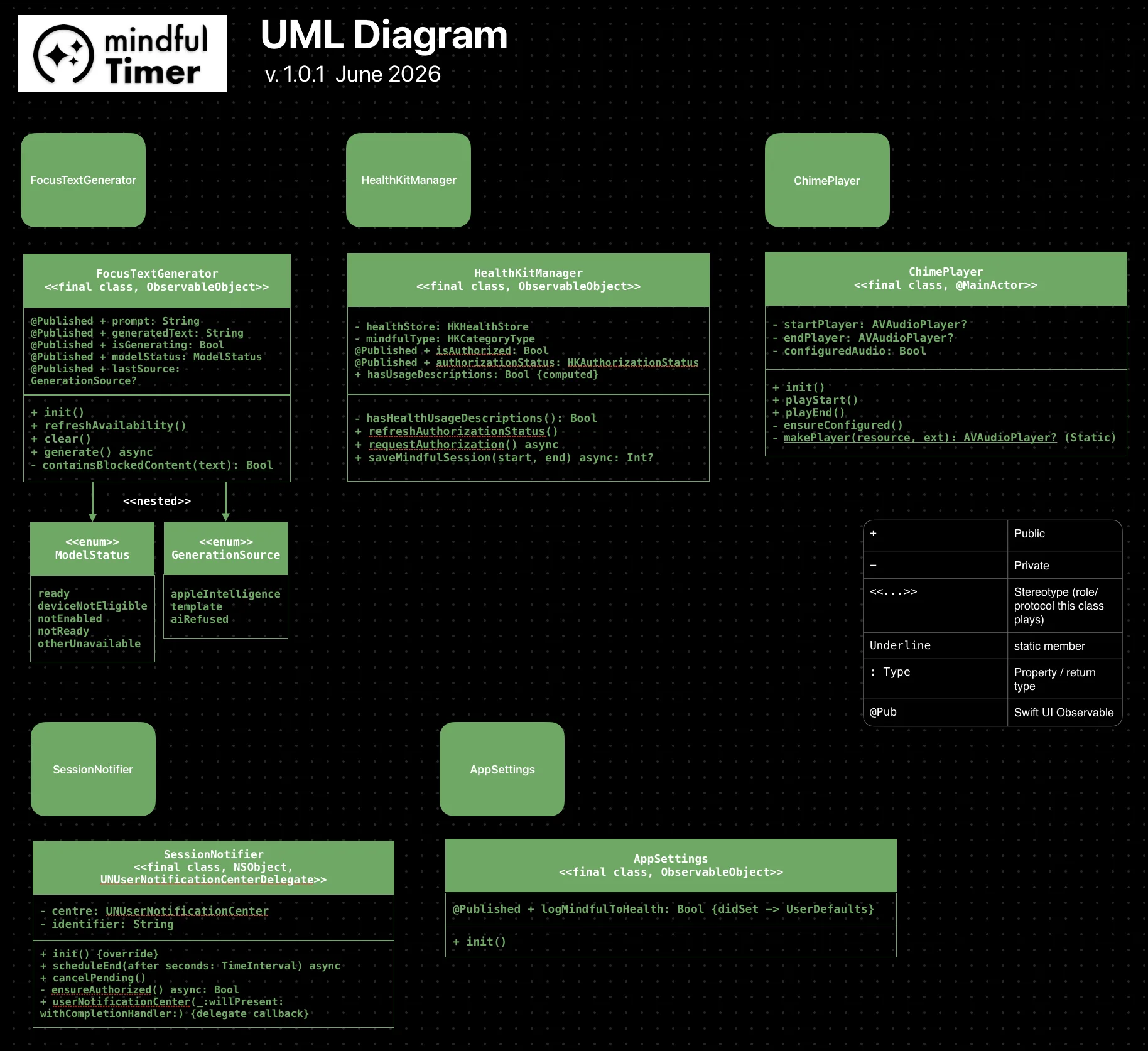
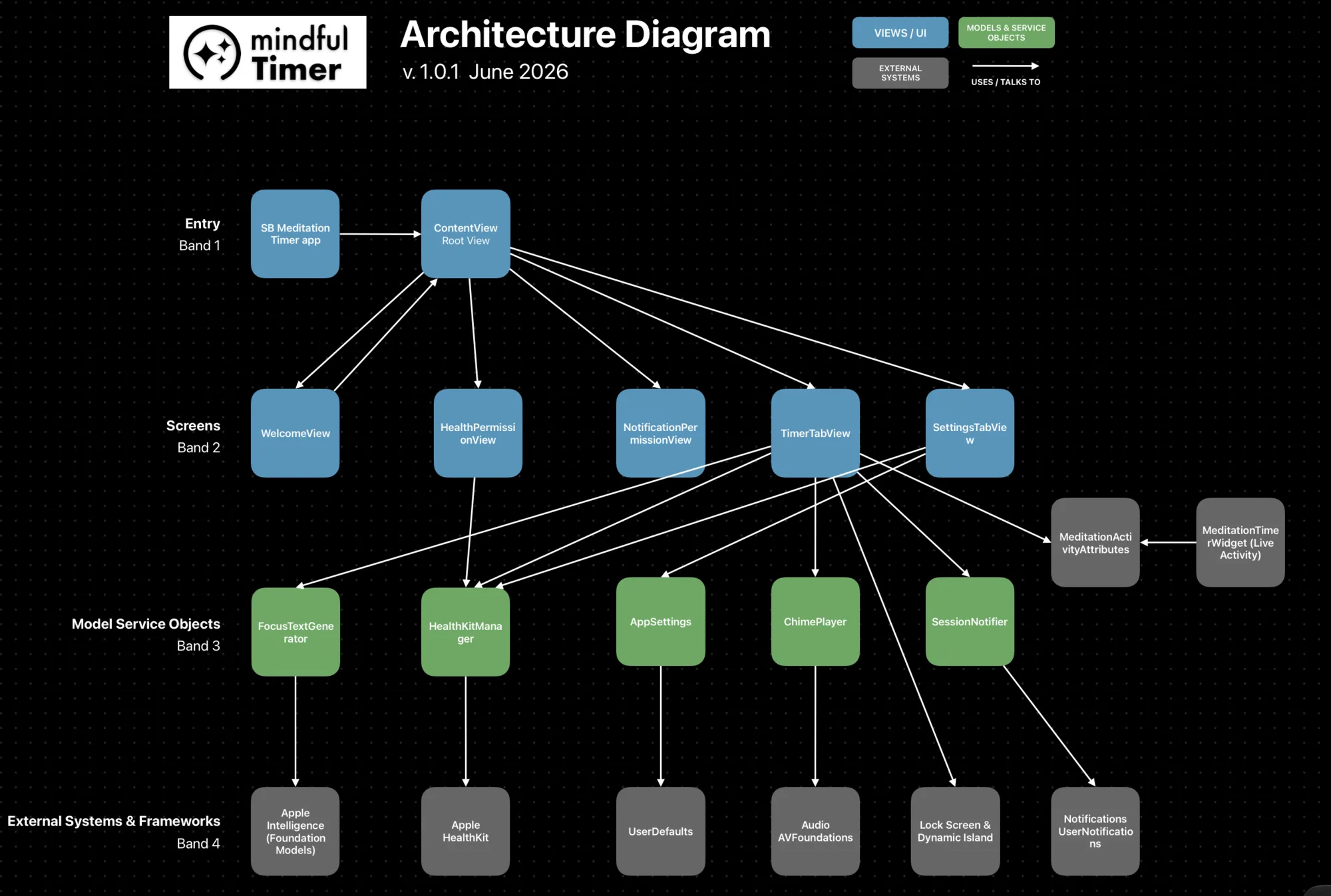
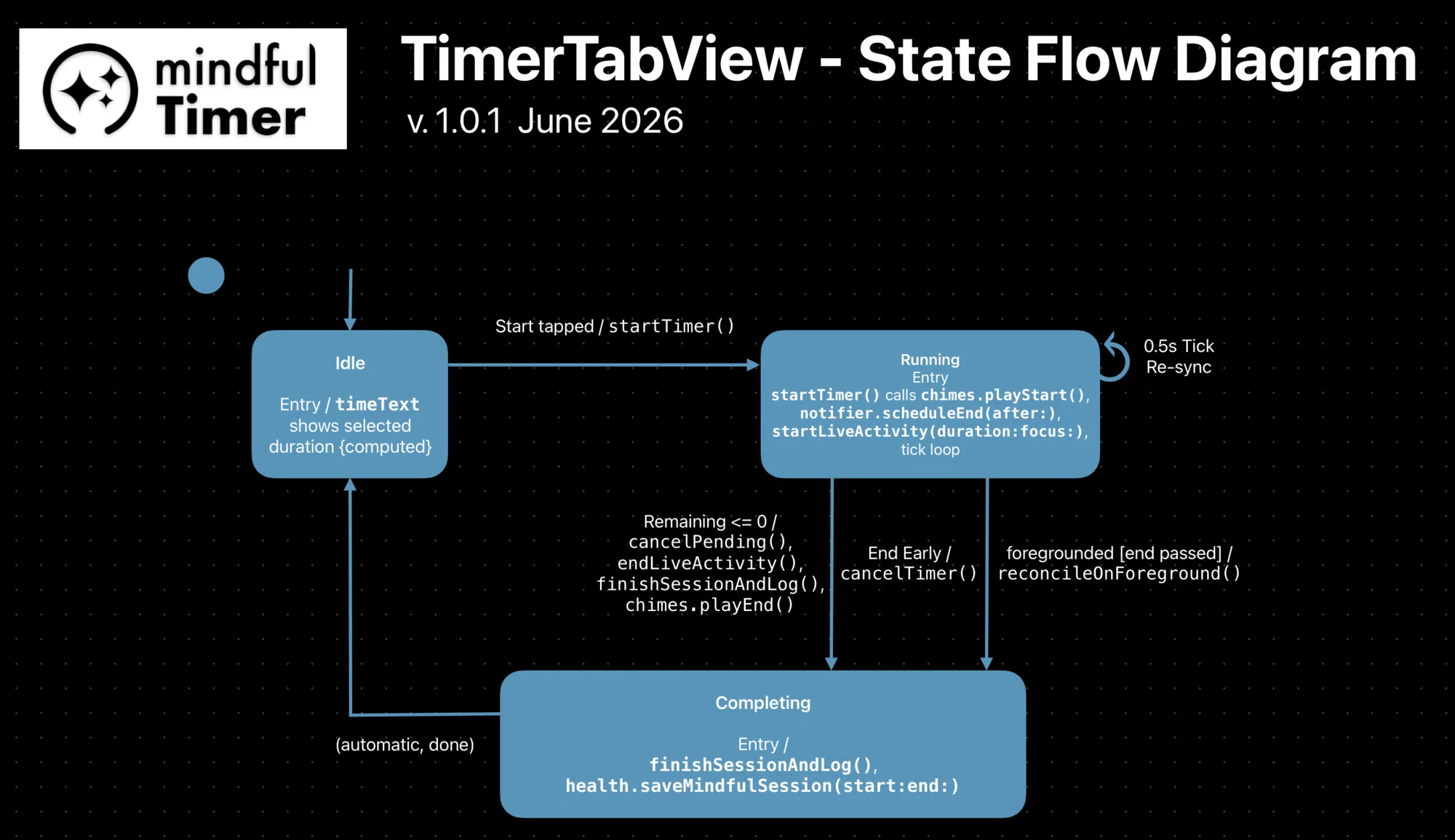
Let's get into it.
Deep-Dive
ContentView
The main entry point is ContentView. This holds all UI Views and functions. This will eventually be split out, but for a sub-2,000 line app, it was fine amidst the rapid changes early on. Upon loading, a number of state variables are defined and called, handling things such as setting up the AI generator, HealthKit integration, and control of other UI elements such as settings, permission views, and whether or not the welcome view has been seen before.
On first run, a WelcomeView is shown, followed by an upfront notifications and HealthKit permissions view. Notifications inform the user of a meditation session ending when the app is in the background, while HealthKit logs mindful minutes to the Health app if the user wishes. This means that if they are meditating to a podcast or video, the timer can continue to work.
TimerTabView
This UI view sets up the primary screen of the app, visible from the App Store listing screenshots. This consists of setting up the variables on screen to control the AI generator, health logging status, settings toggle button, and variables holding timer metrics such as duration, remaining time, and whether or not it is running.
This is all declarative UI, bringing the modules and engines to life on screen for the user. This goes as far as setting up the chimes (start and end audio) and notification scheduler.
Main functions defined and residing here are 'startTimer', 'cancelTimer', 'startLiveActivity', 'endLiveActivity', 'reconcileOnForeground', a time formatter, and a finish-and-log function handling the logging of mindful minutes. This specifies that logging can only happen with at least 60 seconds elapsed on the timer, avoiding the messiness of accidental starts and stops being recorded.
SettingsTabView
This is a simple view, programmatically invoked from the toggle on TimerTabView and shown as a modal pop-up. Settings so far are simply whether or not HealthKit integration is enabled, a button to rate the app on the App Store (hint hint), the app version, and a contact email link for feedback.
WelcomeView & FeatureRow - Onboarding
This simply shows the logo, title, and a short description of the app on first run, with a repeated 'FeatureRow' class defined and instantiated with some basic features of the Mindful Timer app.
NotificationPermissionView & HealthPermissionView - Permissions
Two identical full-screen views ask the user to give permission to log mindful minutes to Health and to allow notifications relating to meditation sessions when the app is backgrounded. These are linked to the keys of 'HKHealthStore' and 'HKCategoryType' for Health, and 'UNUserNotificationCenter' for notifications.
It's much easier to understand now how Apple forces deliberate configuration of permissions for cross-system access. I really struggled with this "key" concept back when building 8BallWatch earlier last year.
Timer & AI UI and Engines - The Timer Engine
The app is fundamentally a 0–60 minute timer in a unique arc-like style, followed by an optional AI Focus Generator panel which allows the user to enter a topic and receive a short repetitive mantra to think about during meditation while the timer runs.
This means the following modules set up the UI and underlying metrics/data generation for each of these features.
ArcRingShape, CircularTimerSelector - The Timer UI
The main timer is defined and drawn from ArcRingShape and CircularTimerSelector, including the round grab handle that allows the user to drag around the arc shape.
These use variables for 'startAngle', 'endAngle', an inset to define thickness, and a path for the control to move around. CircularTimerSelector is where the basics such as total seconds, remaining seconds, 'isRunning' state, and progress calculation for rendering the fill of the counting-down arc are handled.
It also defines the maximum number of seconds, width of the arc control, degrees of the gap at the bottom (defining the arc), as well as accessibility values which allow iOS/iPadOS VoiceOver to read the shapes as controls since this is not a standard UI element like a system button or toggle.
A 'displayFraction' function at the bottom calculates the displayed minutes from the seconds and the total/remaining logic.
FocusTextGenerator, FloatingTextLarge & ModelStatusNote, TemplateNote, AIDisclaimer - The AI Model
The special feature of this app, making it more than another generic timer, is the AI Focus Generator engine and UI. A button on TimerTabView reveals this card below the arc timer.
FocusTextGenerator takes the input prompt and generates an output in the 'generatedText' variable. To administer the Apple Intelligence Foundation Models framework, this module has a simple 'ModelStatus' enumeration and 'GenerationSource' enumeration.
There is also a function that refreshes the availability of the model in case it is disabled between app uses. An 'isGenerating' variable controls the freezing of controls and inputs while the model is generating.
Simple housekeeping methods to generate, clear, and initialise exist alongside a 'containsBlockedContent' method. These underpin and coordinate user input and app behaviour regarding the AI Focus Generator, including presenting the various notes.
'ModelStatus', 'TemplateNote', and 'AIDisclaimer' ensure the user understands the potential inaccuracies or dangers of AI-generated content and are displayed only when the AI model is behind the displayed output rather than the non-AI fallback. A separate disclaimer lets users with a disabled or incompatible device know that their output is a simple fallback.
The user is also made aware when a guardrail has been triggered to prevent a potentially dangerous prompt and is gently reminded to try another topic.
The AI features have an 'if iOS 26, *' condition to run only when the system is new enough to support the API. It will never compile or reach an end user if not. However, with future iOS releases and Apple's unusual AI implementation story to date, future versions may require conditional structures to ensure iOS 26 and 27 users can continue using it as designed whilst supporting whatever future implementation Apple introduces.
ChimePlayer - Audio
When hitting start or end, or at the natural conclusion of the specified meditation session, a chime audio note is played. I made these in under five minutes in GarageBand using a synth with some sustain - quite fun, although I don't know enough about music to get too deep into that.
The two output '.WAV' files are loaded by an optional instance of 'AVAudioPlayer' - another first implementation for me. It is optional because if, for any reason, my custom start and end chime WAV files do not load, a system default sound acts as the fallback.
ChimePlayer includes methods for 'startPlayer', 'endPlayer', 'configuredAudio' for handling the WAV files and fallback, as well as 'makePlayer' and 'playStart()' / 'playEnd()' which are called from the appropriate points in the app's functions.
SessionNotifier - Notifications
This class relates to notifications. If the app is backgrounded, a notification appears to let the user know their meditation session has finished. This is useful if they are in another app watching and following a guided meditation video, or have their phone locked beside them as they practice.
This function ensures permission is granted and enabled, and defines the text and icon presented in each notification banner on the iOS/iPadOS device. It also handles asking for notification permissions when needed should the user rush past and not enable them from the outset.
Optionally, the app can run without this feature.
SessionNotifier also handles cancelling a session by deleting its scheduled end-time notification and initialising the notification banner setup upon starting a meditation. This was something I assumed iOS notifications handled automatically, but they do not.
It is important because setting up a few sessions accidentally would otherwise still fire incorrect notifications. This is something I struggled with last year for Mindful Check-In and ultimately delayed to a future version because I was getting phantom notifications daily during testing.
HealthKitManager, SavedBanner - Apple HealthKit
Every session longer than 60 seconds, if enabled by the user, is logged to Apple Health. This is in line with other meditation apps that count any meaningful session towards your health metrics and is another little "more than a timer" but thoughtfully designed product aspect of Mindful Timer.
This sets up the 'healthStore', 'mindfulType' (the type of metric to log), and authorisation status (Americanised in the code and comments to stay consistent with Apple's American English syntax).
This is also checked on each run of the app in case the user changes it, and it handles the initiation needed to re-prompt for permission at suitable times.
SavedBanner is a simple UI body that takes the number of minutes logged and displays this within the app to confirm to the user following a session how many mindful minutes they completed and had logged by the app.
AppSettings
Finally, 'AppSettings' handles persistence in '@AppStorage' of the user's preference for logging mindful minutes to Health.
Unlike notifications, which if given permission are simply enabled and working in this version, Health permission may be granted but the user may not wish to log all sessions. That's all this handles - for now.
Interesting Considerations During Building
One View Owns Everything
One file - ContentView - owns the long-lived objects, and the classes publish state while the views observe them: the standard SwiftUI pattern.
The only part living outside that is the Live Activity, which sits in its own Xcode target and talks to the app through a shared attributes file. The diagram below maps it out.
From a Counter to a 'Wall-Clock' Timer
Early builds did the obvious thing: tick a counter down by one every second. That falls apart the moment the app is backgrounded or the device is under load - the timer drifts behind real time, and once you are scheduling a notification and a Live Activity against a fixed end time, that drift starts to show.
The fix AI nudged me towards was the "wall-clock" approach: don't count down, recalculate. Each tick simply works out 'remaining = end - now()' from the actual date.
I pushed back at first - for a meditation timer, does a second here or there really matter? Probably not. But it was worth understanding why the naive way is wrong, because in plenty of other apps those cumulative inaccuracies are a genuine problem.
It was worth designing around. You can see it as the tick loop in the State and Sequence diagrams.
Avoiding a Double-Chime
The start and end chimes seem trivial until you account for the app being backgrounded.
In the foreground, the in-app audio player handles them. But if the timer finishes while you are in another app or the phone is locked, that player is not running - so the scheduled notification carries the end chime instead.
The trap that creates is returning to the app after a backgrounded session has ended and, without care, it would chime again.
So when the app comes back to the foreground, 'reconcileOnForeground()' checks whether the session already finished and deliberately skips the in-app chime if the notification already played it.
The Sequence diagram's three branches show exactly where the sound comes from in each case - and that the backgrounded branch is the one with no in-app 'playEnd()'.
The Safety of AI Models
When I started, I naively assumed Apple's models would have safeguards baked in - perhaps too strongly. Early tests confirmed the guardrails were automatic and I couldn't bypass them. But later testing revealed something worse: the same deliberately dodgy prompt that got blocked one time would occasionally slip through to a genuinely dangerous output the next.
I couldn't rely on the model alone, so I added my own blocklist of keywords and themes to make sure the app never encouraged someone to meditate on serious mental-health topics.
A second surprise was that once a guardrail fired, the model tended to keep blocking everything that followed in the same conversation. The fix was to spin up a fresh 'LanguageModelSession' on every call to the focus generator, so one refusal doesn't poison the next request.
The third problem was availability. Apple does not let me restrict the app to devices that support Apple Intelligence - and even on a supported device, the user might have it switched off. So the app has to degrade gracefully.
My first attempt was a set of fallback paragraphs with the user's topic slotted in, which meant a refused prompt would fall straight through to the fallback and echo the bad input back in soothing language - the exact opposite of what a guardrail is for.
It also wasn't clear to the user whether they were receiving real AI or a canned sentence; someone who bought the app for £2.99 on an unsupported phone could reasonably feel disappointed. The answer was to track the model's state explicitly - one enumeration for availability (ready, not enabled, device not eligible) and another for where a given result actually came from (Apple Intelligence, the template fallback, or a refusal).
That drives the on-screen notes: "AI output may be inaccurate - check twice", "AI features unavailable, using a fallback", and a specific message when a guardrail blocks a topic.
Now it is always clear when the AI is - and isn't - doing the work.
Live Activities
I wanted Live Activities mostly to work with an API I love as a user - that glanceable progress on the Lock Screen and Dynamic Island for a delivery or a workout.
A meditation timer was a perfect fit, but I had no idea how to wire one up, and the documentation and demos, good as they are, cannot always show you exactly how it slots into your own application. This is where AI guided me again, in context.
The decision I would never have known to make was that the Live Activity calculates its own countdown from the session's end time rather than the app pushing an update every second.
That single architectural choice means no per-second messages to the system, saving battery life - which matters on iPhone and iPad, and frankly on any platform where wasted energy is simply wasted energy.
The Sequence diagram's ActivityKit notes mark where this happens.
What Documenting It Taught Me
I built a lot of this app by directing AI and then going back to understand it - and these four diagrams are how I made sure the second half actually happened.
Drawing the architecture, the class structure, the timer's state machine, and a full session sequence forced me to account for every object and every branch, including the awkward ones I would otherwise have skimmed over: why the timer recalculates instead of counting, why the chime comes from two different places, and why a refused AI prompt must never reach the fallback.
None of that is visible from the running app, and none of it truly stuck until I had drawn it.
If you take one thing from this post, let it be this: building something and understanding it are two separate jobs - and the diagrams are how I completed the second one.